About
About

About is located within Console Menu items
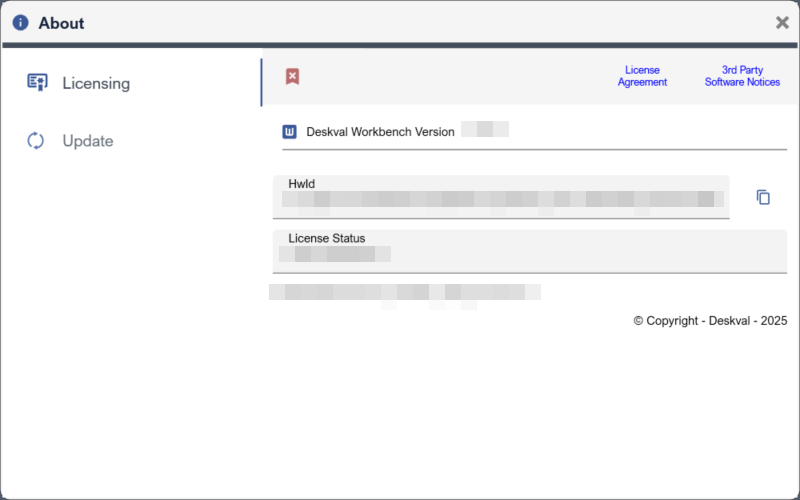
Licensing tab displays License Status, Hardware Id (HwId) and Deskval Workbench Version.
|
Toolbar Button |
Description |
|
|
Deactivate License Intended use for Deactivation is to transfer (A) license to another computer. Once deactivated, application will NOT accept the licensing anymore in that computer! Button is enabled only if Access Level is Admin and application has a valid license file. |
|
License Agreement |
Display End User License Agreement |
|
3rd Party Software Notices |
Display 3rd party Software Notices |

(A) : Additional charges may apply.
Licensing Overview
When the Deskval Workbench is installed to a computer first time, if you do not have a valid license, Trial Licensing is activated automatically. There is no separate trial license file. Trial Licensing mechanism is internal.
With Trial version, software is fully functional for 14 days to support your experiencing and enable you to check if it meets your needs.
After trial period is expired, it will not be possible to start application.
Licensing scheme is based on Node-Locking with a supplied license file.
This means, first, you have to provide us the HwId (generated by Deskval Workbench specific to the installed computer) and then Deskval will provide you a license file, dedicated to that hardware.
As soon as the valid License file is placed into the MyDocument > Deskval > Licence, it will be recognized by the software. No more operation is needed.
|
|
Make sure to include deskval.com in your approved senders list so that our e-mails will not be blocked. |

Requesting Offer/Proposal
If you would like to have an Offer/Proposal, send an email to sales@deskval.com . Required data is listed in the example :
Example :
|
Company Title |
My Company GmbH |
|
Company Address |
My Adress City Country |
|
Company Tax Number |
xxxxx |
|
First name |
John |
|
Last name |
Doe |
|
Contact Email |
john@mycompany.com |
|
Contact Telephone |
+xxxxxx |
|
Requested Items for Offer/Proposal |
|
|
Qty |
License Type |
|
2 |
Subsciption |
|
1 |
Perpetual |
Deskval will send you an offer in 1-2 business days., to the Contact Email that you provide in the list.
How to License the Deskval Workbench Software
Step 1 : Install Deskval Workbench to the Computer(s) where the license will be locked to that Computer(s). Note that for each Computer, you have to perform an installation.
Step 2 : Open the Licensing dialog and learn the Hardware Identifier (HwId) . Note that for each Computer, there will be a different HwId. Get all HwId s one by one.
Step 3 : Send an email to sales@deskval.com . Required data is listed in the example
Example :
|
Company Title |
My Company GmbH |
|
Company Address |
My Adress City Country |
|
Company Tax Number |
xxxxx |
|
First name |
John |
|
Last name |
Doe |
|
Contact Email |
john@mycompany.com |
|
Contact Telephone |
+xxxxxx |
|
Requested Licensing Data |
|
|
HwId |
License Type |
|
xxxxxx |
Subsciption |
|
xxxxxx |
Subscription |
|
xxxxxx |
Perpetual |
|
... |
... |
+ Attached File : Payment Receipt
Step 4 : Deskval will verify the payment and send you an email in 1-2 business days, with the following content:
- Invoice
- License File(s) attached (or a download link). Note that for each HwId, there will be a separate License File. For the example, 3 license files will be provided.
Step 5 : Put each license file(s) into the MyDocument > Deskval > Licence folder of the related Computer(s)
Transferring the License to an another Computer
It is possible to transfer the valid license from source computer to another target computer. Additional charges may apply for this operation. Check if you have a valid Maintenance Contract covering License transfer and its validity period.
Step 1 : Deactivate the license in the source computer. Open Licensing Dialog and click button. Confirm License Deactivation Operation.,
Step 2 : Upon Confirmation, a file is created in ...\Deskval\Log\DeactivationLog.txt (same folder with the Log file)
Step 3 : Open the Licensing dialog in the destination computer and learn the Hardware Identifier (HwId) of the destination computer. Make sure the destination computer has the same version of Deskval Workbench as the source computer.
Step 4 : Send an email to support@deskval.com . Required data is listed in the example
Example :
|
Company Title |
My Company GmbH |
|
Company Address |
My Adress City Country |
|
Company Tax Number |
xxxxx |
|
First name |
John |
|
Last name |
Doe |
|
Contact Email |
john@mycompany.com |
|
Contact Telephone |
+xxxxxx |
|
License Transfer Data |
|
|
Destination Computer HwId |
xxxxxx |
|
Maintenance Contract Id |
If you have, specify |
+ Attached File : DeactivationLog.txt obtained from the source computer
+ Attached File : Payment Receipt (if you do not have a valid Maintenance Contract)
Step 5 : Deskval will verify the payment/Maintenance Contract and send you an email in 1-2 business days, with the following content:
- Invoice (If no valid Maintenance Contract)
- License File attached (or a download link) for the destination computer.
Renewing a Subscription based License
When your subscription based license is expired, basically you need to have a new license. It is same as getting a new license. Just follow the steps mentioned in section How to License the Deskval Workbench Software.