Job
Job 
Job is the execution entity for Deskval Workbench. Jobs are designed/edited by Job Editor. It contains all related data in a job file.
Overview
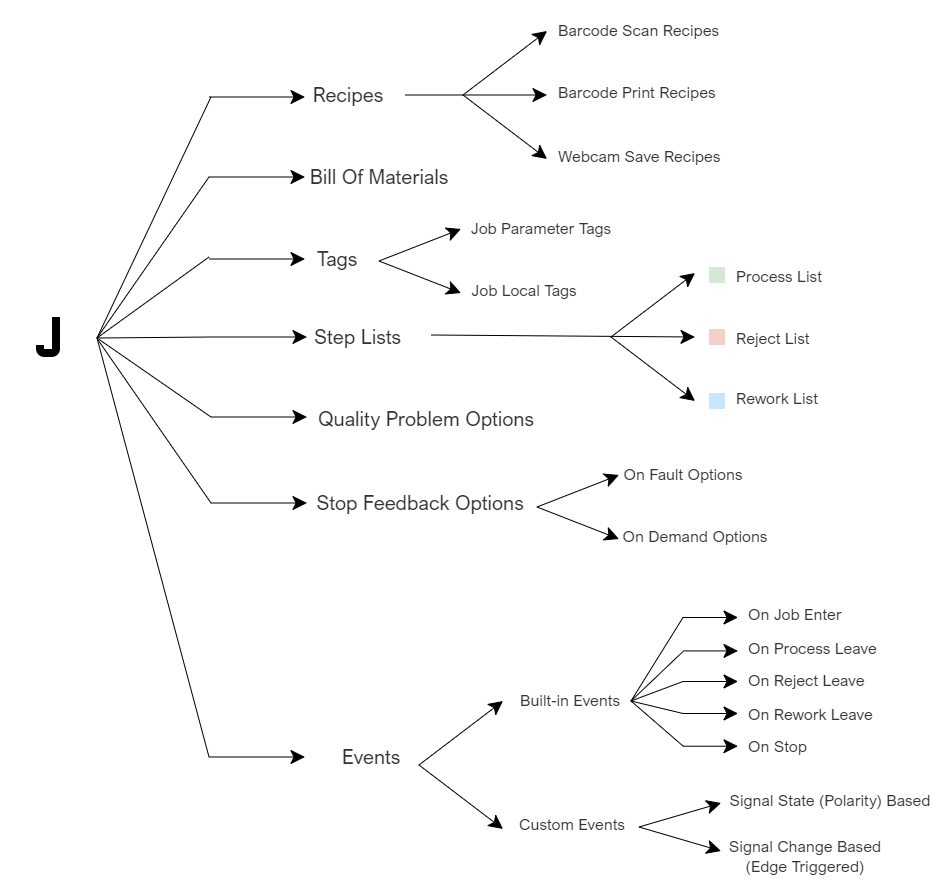
Overview of Job pillars
|
Pillar |
Description |
|
Some design items (i.e. Barcode Scan Entry, Barcode Print Button, Webcam) require a recipe to be linked, in order for its work configuration. |
|
|
Let you define Bill Of Material items to be used within the Job. |
|
|
In Job scope, there are two types of tags. |
|
|
A Job has 3 Step Lists where designed Steps are placed into. Job execution starts with Process List. |
|
|
Allows to define Quality Problem items to be submitted by the user in run-time. |
|
|
Allows to define Stop Reasoning items to be submitted by the user in run-time. |
|
|
Allow to define/utilize events in Job scope. |
Creating/Opening/Deleting a Job - Job Manager
Job Manager allows to Create-Open-Duplicate-Delete Jobs.
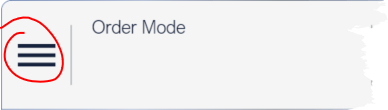
Job Manager is located within Console Menu items
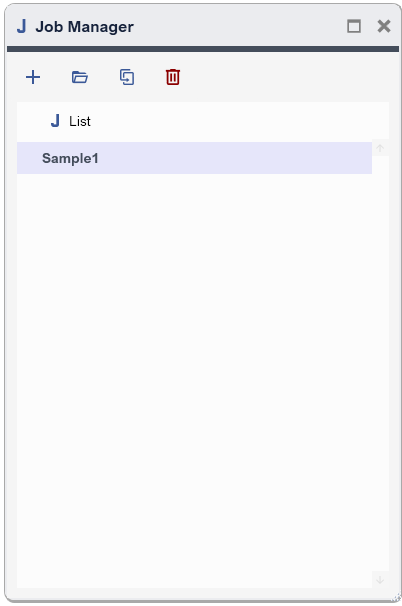
Job Manager
|
Toolbar Button |
Description |
|
|
Create new Job |
|
|
Open selected Job in Job Editor |
|
|
Duplicate selected Job |
|
|
Delete selected Job |




Editing a Job - Job Editor
Jobs are designed/edited by Job Editor. When a Job is opened in Job Manager, it is opened in Job Editor.
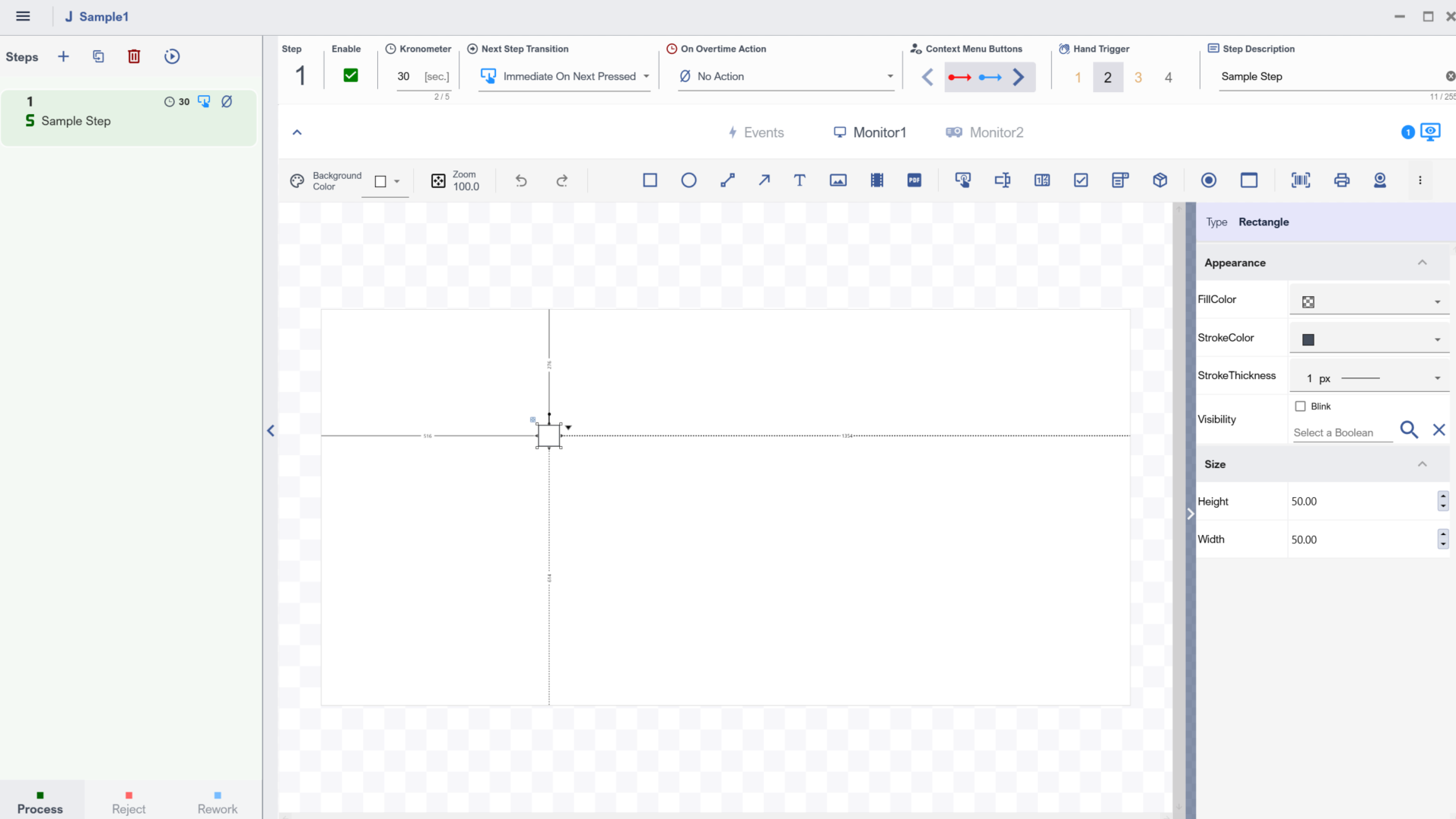
Job Editor
Job Editor Menu 
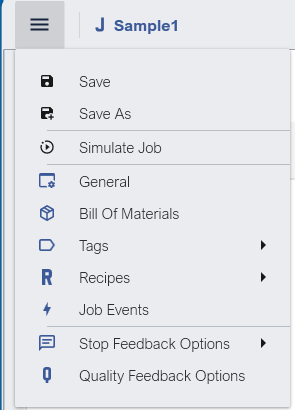
Job Editor Menu Items
|
Item |
Description |
|
Save |
Save Job |
|
Save As |
SaveAs Job |
|
Simulate Job |
Simulate Job |
|
General |
Opens General Dialog, that allows you change Monitor resolutions, manage how the Route In Tag value is provided and displays information about Job ( Created by, Created Date and Time, Last Edited by, Last Edited Date and Time) |
|
Bill Of Materials |
Open Bill of Materials dialog, that allows you to manage Bom items. |
|
Tags |
Access to Batch Tags and Local Tags. |
|
Recipes |
Access to Recipes. |
|
Job Events |
Open Job Events Dialog. |
|
Stop Feedback Options |
Access to Stop Feedback Options |
|
Quality Feedback Options |
General
General Dialog allows to define monitor sizes, and define the way how the Route In Tag value is provided.
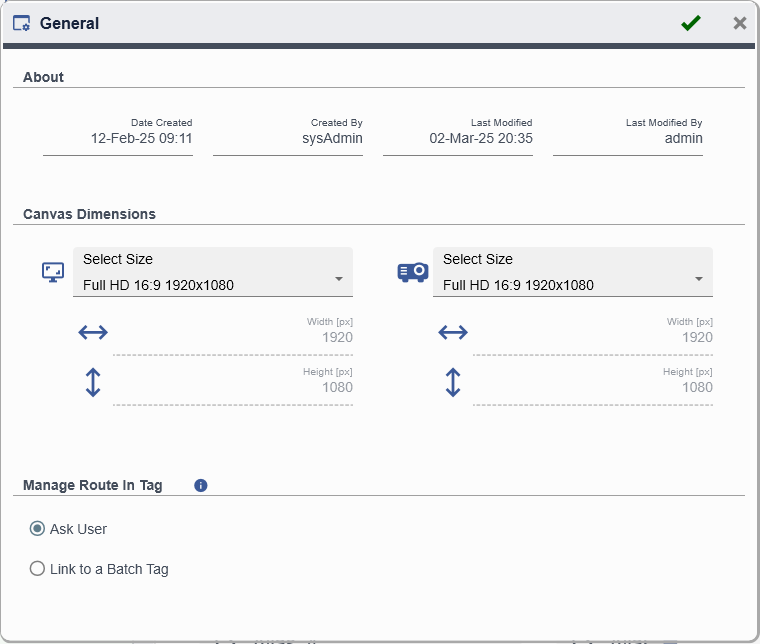
Job Editor - General Dialog
Route In Tag is part of Environment Tags. Route In Tag plays a role when it comes to Product Order. Manage Route In Tag provides options on how Route In Tag value is provided.
Steps Panel
Steps Panel lets one manage Step Lists. It has a tabbed structure that enables navigate between Process - Reject - Rework List.
|
Toolbar Button |
Description |
|
|
Add Step to the Selected Step List ( i.e Process/Reject/Rework) List |
|
|
Duplicate selected item |
|
|
Delete selected item |
|
|
Simulate selected item |
|
|
To change the position of a Step in a list, select it and drag to a target position in the list. |

Step Editor
Steps Editor lets one handle all design aspects of a Step. It has a tabbed structure to navigate between Monitor1 - Monitor2 - Events.
|
Section |
Description |
|
Configure Step properties/behavior
|
|
|
Monitor1 Tab |
Design Monitor1 |
|
Monitor2 Tab |
Design Monitor2 |
|
Events Tab |
Handle Step Events |

Job Execution Principle
Job execution starts with Process List.
During execution, flow may be directed to another Step List such as Reject/Rework List.
Job execution ends when there is no steps left within the List.
To Stop the execution, use Stop button shown in the context menu of Monitor1.
Job Simulation 
It is possible to simulate a Job. Especially, Simulation is helpful during design phase.
When a Job Simulation is started, the Job is executed as if it is running in production, with the exception that no data is saved into Production Database.
To Stop the simulation, use Stop button shown in the context menu of Monitor1.
|
|
In Job Simulation, Events are executed, therefore, be careful with the output signals that may cause an actuation of a connected device/actuator. |

Job Events 
Job Events dialog allows one to manage Job scoped events.
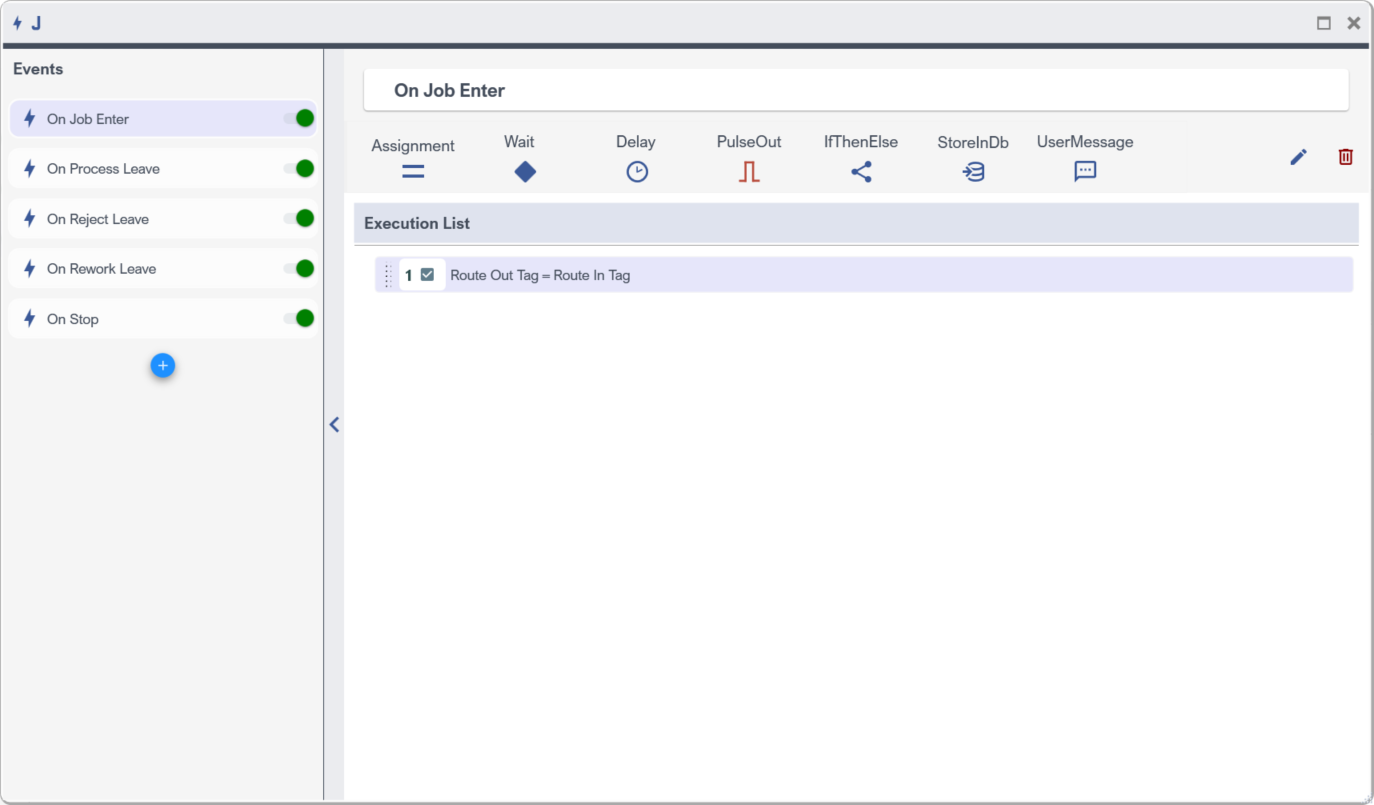
An example Built-in Event in Job Scoped Events