Console
Console
When the Deskval Workbench is launched, Console appears.

Console
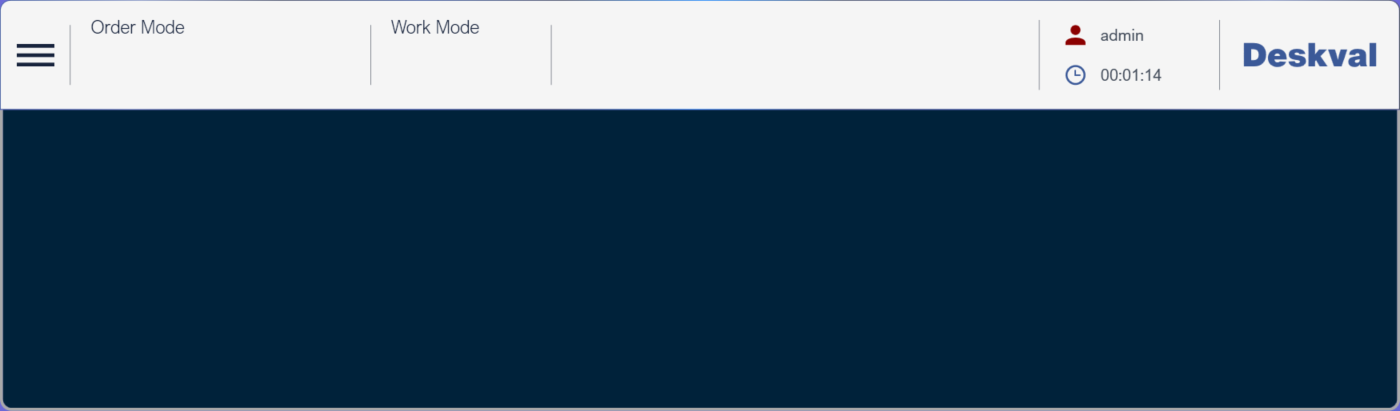
Depending on context, Console provides a Balcony Panel
|
Section |
Description |
|
Menu |
Console Menu On Click, drops down Menu Items |
|
Order Mode |
Order Mode Section, displays current Order Mode On Click, drops down Order Mode options |
|
Working Mode |
Working Mode Section, displays current Working Mode On Click, drops down Working Mode options |
|
Aktuel User
|
Aktuel User Section, displays current User On Click, drops down Login Logout options |
|
Balcony Panel |
Balcony Panel appears depending on context, i.e to enter OrderId , select Job etc... |


Console Menu 
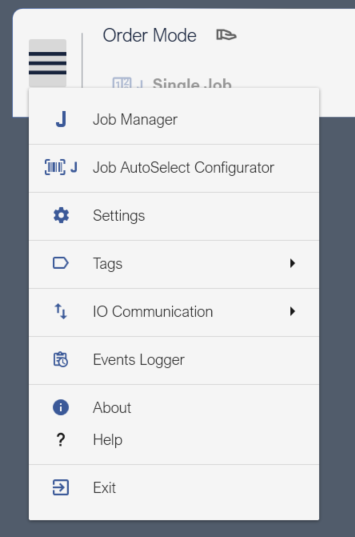
Console Menu Items
|
Menu Item |
Description |
|
Job Manager allows you to Create-Open-Duplicate-Delete Jobs. |
|
|
Job Autoselect Configurator allows to Create-Edit-Delete operations on Barcode-Job pairs. |
|
|
Settings allows you to configure Deskval Workbench. |
|
|
Tags provides access to Batch Tags and Global Tags dialog. |
|
|
IO Communication provides access to Tags associated with a communication. |
|
|
Opens the Events Logger file. |
|
|
Opens About dialog for License Status, Hardware Id (HwId) and Deskval Workbench Version. |
|
|
Help |
Opens Help File |
|
Exit |
Quits Deskval Workbench application. |